
Password Managers for Seniors: A Practical Setup Guide
September 6, 2026 | Wade · PC Help Hero
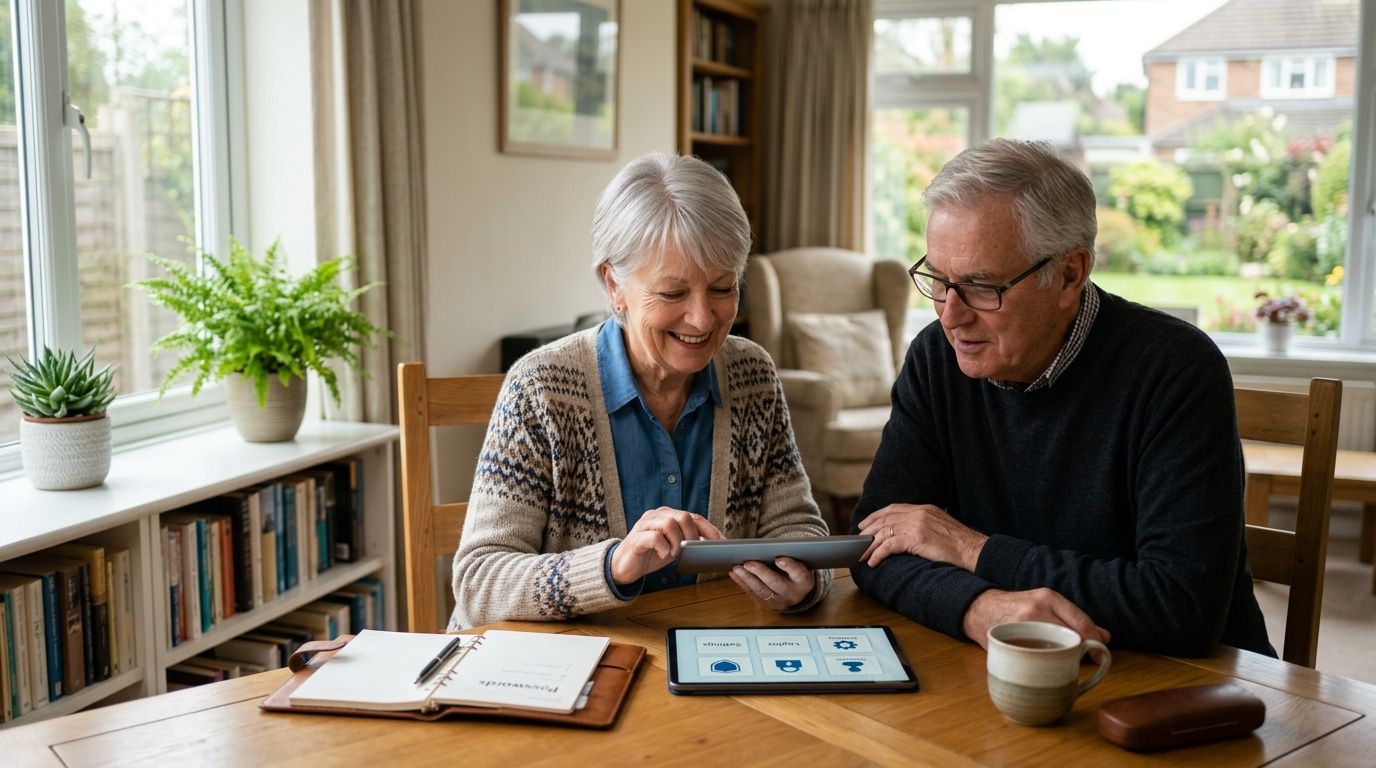
Most of the account break-ins I clean up for older customers in West Tennessee start the same way: one password, used on a shopping site years ago, leaked and then tried against email and the bank. A password manager fixes that by giving every site its own long password and remembering them all behind one master password. This guide explains what I've actually set up for customers, how the common choices differ, and a numbered, plain-English walkthrough for getting started.
- A password manager stores a unique password for every site behind one master password, and fills them in for you. It removes the reason most people reuse passwords.
- For customers on a budget I usually set up Bitwarden (free plan, paid Premium adds emergency access). For families who want the most guided experience and shared vaults, 1Password. Keeper is another option with a family emergency-access feature. All three are widely used; which one fits depends on you, not on a ranking.
- The setup that sticks: long memorable master password written down somewhere safe, browser extension installed, fingerprint unlock on the phone, and an emergency contact who can get in if you can't.
- Setup is a common $49 remote session; I can also teach it step by step in a tutoring lesson.
Why this matters
I'm not going to quote a dollar figure for how much seniors lose to password problems, because I don't have a reliable one and I'd rather not invent it. What is documented: the FBI's Internet Crime Complaint Center publishes an annual Elder Fraud Report showing that adults over 60 report the highest losses of any age group, and that account takeovers and impersonation scams are a major part of it. Reused passwords are one of the easiest ways those takeovers happen. When one site leaks, criminals try the same email and password everywhere else — automatically, within hours.
A password manager makes reuse unnecessary. You remember one strong master password; it remembers the rest.
What I look for when setting one up for a customer
- Readable text and few menus. If the daily screen has more than a search box and a list, it's too much.
- Autofill that works on the first try on the sites you actually use: bank, pharmacy, email, Facebook.
- A way for a trusted person to get in if you're in the hospital or forget the master password. Called emergency access, family recovery, or similar.
- Fingerprint or face unlock on the phone, so you're not typing a long master password on a tiny keyboard.
- Real support you can reach, and clear documentation.
- A public security record. Every major vendor has had scrutiny; what matters is how they responded. LastPass disclosed in 2022 that attackers obtained copies of customer vault backups, which is why I haven't set it up for anyone since.
The options I've actually set up, and what I noticed
This isn't a ranking. It's what happened when I put each one in front of real customers.
| Password manager | What I've seen work well | What to know | Vendor help |
|---|---|---|---|
| Bitwarden | The free plan does everything a single person needs: as many passwords as you need, sync across phone and computer, browser autofill. Open-source code, independently audited. Most of my budget-minded customers land here. | The screens are plainer than the others. Emergency Access (letting a trusted person in) requires the paid Premium plan for the account holder. | bitwarden.com/help |
| 1Password | The most guided setup of the three, and the Families plan makes it easy for an adult child to hold a shared vault and recover a parent's account. Customers who use a Mac or iPhone tend to like it. | No permanent free plan — it's a subscription after the trial. Account recovery works through a family organizer, so someone in the family needs to be set up as one. | support.1password.com |
| Keeper | Solid autofill and a straightforward Emergency Access feature where you name up to five trusted people and a waiting period. | More settings screens than the other two; I hide what isn't needed during setup. Paid plans only for full features. | docs.keeper.io |
| Dashlane | Clean interface and built-in alerts when a saved login shows up in a known breach. | Free tier is limited; check current plan details before choosing it for a budget setup. | support.dashlane.com |
| Built-in browser/phone managers (Google, Apple, Microsoft) | Already there, free, and better than reusing passwords. Fine if you only ever use one brand of device. | Awkward when you mix devices (Windows PC plus iPhone, say), and emergency access options are limited. | Built into the account settings of each |
Features and prices change; the vendor links above are the current source of truth.
The best password manager is the one still in use six months later. Fingerprint unlock on day one is usually what decides that.
Setting up Bitwarden, step by step
I'll use Bitwarden because it's free and the steps are nearly identical in the others. Budget about 45 minutes. Do it on your main computer first.
- Choose your master password before you start. Make it a phrase of four or more unrelated words with a number, something like copper-window-Tuesday-forty2. Long beats complicated. Write it on paper and put it where you keep important documents. Bitwarden cannot reset it for you if you forget it.
- Create the account. Go to bitwarden.com, click Get started, enter your email and the master password. Confirm the email they send you.
- Install the browser extension. From bitwarden.com/download, choose your browser (Chrome, Edge or Firefox), click Add, then click the puzzle-piece icon in the browser toolbar and pin Bitwarden so its shield icon is always visible. Click the shield and sign in.
- Save your first password. Go to a site you use — your email is a good start — and log in as usual. Bitwarden pops up a bar asking whether to save the login. Click Save. That's it; next time you visit, click the shield (or the small icon in the password box) and it fills in.
- Turn on two-step login for Bitwarden itself. In the web vault: Settings > Security > Two-step login. Email is the simplest option. Save the recovery code it shows you on the same piece of paper as your master password.
- Put it on your phone. Install the Bitwarden app from the App Store or Play Store, sign in, and when it offers, turn on Unlock with fingerprint/Face ID. Then, in the app's settings under Autofill, follow the prompt to make Bitwarden the phone's password provider so it fills in apps too.
- Set up an emergency contact. This needs Bitwarden Premium (a small yearly fee). In the web vault: Settings > Emergency access > Add emergency contact. Enter your trusted person's email, choose View or Takeover, and set a waiting period (7 days is reasonable). They accept the invitation, and you confirm. If they ever request access and you don't decline within the waiting period, they get in.
- Let it collect the rest over the next month. Every time you log in somewhere, say yes to saving. Don't try to enter fifty passwords in one sitting.
- Fix the reused ones, most important first. Email, then bank, then anything with a saved card. For each: go to the site's change-password page, click the Bitwarden shield, choose Generator, copy the new password, paste it in, and Bitwarden offers to update the saved login.
- Test the recovery plan. Have your emergency contact confirm they can see the invitation, and make sure you can find your written master password. This step is the one people skip and regret.
Bitwarden's own guides for each step are at bitwarden.com/help. 1Password's equivalents are at support.1password.com, and Keeper's at docs.keeper.io.
Common worries, answered honestly
"What if the company gets hacked?" Your passwords are encrypted with your master password before they leave your computer. Even in the LastPass case, vaults protected by long master passwords were not readable. That's why step 1 matters more than which brand you pick.
"What if I forget the master password?" With Bitwarden, nobody can reset it — that's the trade-off for the encryption. Your written copy and your emergency contact are the safety net. With 1Password Families, a family organizer can recover your account.
"Isn't a notebook safer?" A notebook at home is genuinely not bad; it can't be hacked from Russia. Its problems are that people write short passwords to save space, reuse them, and can't use the notebook when they're at the doctor's office with their phone. A manager fixes all three. Keeping the master password in the notebook is the sensible middle ground.
When to get help
If you'd like this done with you rather than by you, a $49 remote session covers the whole setup above while you watch and type your own passwords. If you'd rather learn at your own pace, tutoring is $45 for a single hour. And if you suspect a password has already been used against you — unexpected password-reset emails, a locked account, friends getting messages from you — do the cleanup first; see signs your computer has a virus.
Want it set up with you?
A remote session gets a password manager installed on your computer and phone, with emergency access configured, while you watch.
FAQ
Which password manager do you recommend for seniors?
It depends on the person. For most single users on a budget I set up Bitwarden's free plan. For families who want shared vaults and account recovery, 1Password Families. Keeper is another option with emergency access. I don't rank them — I match them to how you use your devices.
Is Bitwarden really free?
Yes. The free plan includes as many passwords as you need, sync across devices, and browser and phone autofill. The paid Premium plan adds Emergency Access and a few extras, and is what I recommend if you want a trusted person able to get in.
What happens if I forget my master password?
Bitwarden and most others cannot reset it, because your vault is encrypted with it. Write it on paper and keep it with important documents, and set up an emergency contact. 1Password Families offers recovery through a family organizer.
Is a password manager safer than writing passwords in a notebook?
A notebook can't be hacked remotely, but it encourages short, reused passwords and isn't with you on your phone. A manager gives every site a long unique password. Writing only the master password in the notebook combines the strengths of both.
Should I still use LastPass?
LastPass disclosed in 2022 that attackers obtained copies of customer vault backups. I no longer set it up for customers. If you use it, make sure your master password is long, and consider moving to another manager.
Can PC Help Hero set up a password manager for me?
Yes. It's a common $49 remote session: install on computer and phone, save your first passwords, turn on fingerprint unlock, and configure an emergency contact, all while you watch and type your own passwords.
Related guides
Need Help?
Got a question after reading this? Give us a call — we're happy to help explain anything or take care of your computer problem.
More Articles
Scareware Pop-Up Saying Your PC Is Infected? Jackson, TN
That loud warning on your screen with a phone number to call is almost always a scam, not a real virus alert. Here is what to do first, what never to do, and when to get a real person to look at it.
Forgot Your Windows Password? Safe First Steps in Lexington, TN
Forgot your Windows password and now you're staring at a locked screen? Here are the safe things to try first, the ones that won't cost you your files, and how to tell when it's time to call for help.