
Let's Get You Connected
Install the PC Help Hero support app once and Wade can help you any time you call, without a trip to your house. It only takes a couple of minutes.
-
Click the download button above
Your browser will save a file that starts with meshagent. If it asks whether to keep the file, choose Keep.
-
Open the file
Click the file in the downloads bar or the download icon at the top right of your browser. You can also open your Downloads folder and double-click it.
-
If a blue "Windows protected your PC" box appears
Click More info, then click Run anyway. That's normal for small-business software.
-
Click "Yes" when Windows asks for permission
The box will ask "Do you want to allow this app to make changes to your device?" Click Yes.
-
Click "Install"
A small window titled Mesh Agent will open. Click Install and wait a few seconds until it says it's installed, then close the window.
How do I remove it later?
Run the same file again and click Uninstall. Or go to Settings → Apps, find Mesh Agent, and click Uninstall.
-
Click the download button above
A file called PCHelpHero-Remote-Mac.pkg will save to your Downloads folder.
-
Double-click the file. Your Mac will block it, and that's expected.
Click the download arrow in Safari (or open Finder → Downloads) and double-click PCHelpHero-Remote-Mac.pkg.
A box will say "PCHelpHero-Remote-Mac.pkg" Not Opened or Apple could not verify…. This happens on every Mac. Click Done.
Do not click Move to Trash. If you did, just download the file again. -
Open Privacy & Security
Click the Apple menu in the top-left corner of the screen and choose System Settings.
Click the search box at the top left, type privacy, and click Privacy & Security.
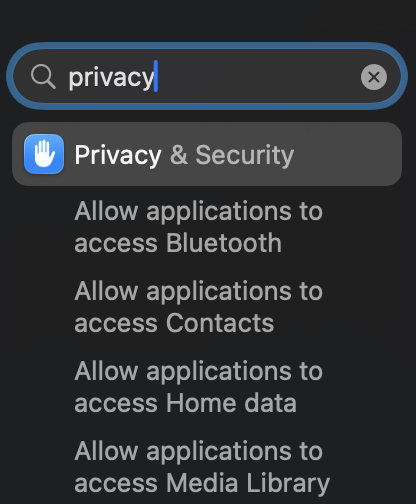
-
Scroll down and click "Open Anyway"
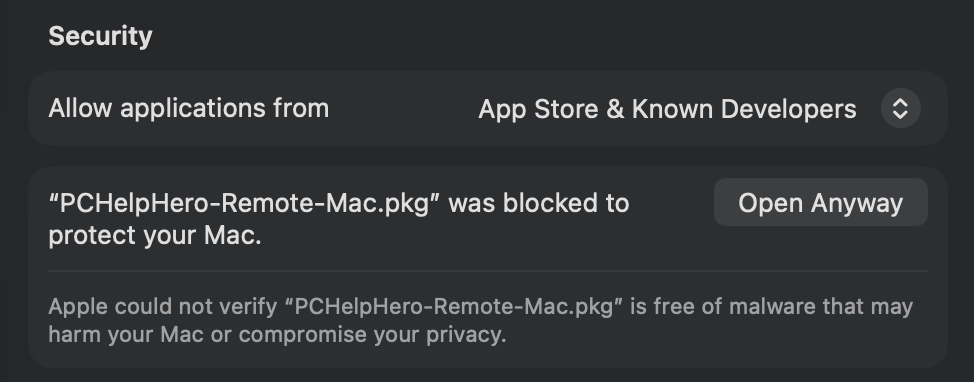
Scroll down on the right side to the Security section. You'll see "PCHelpHero-Remote-Mac.pkg" was blocked to protect your Mac. Click Open Anyway.
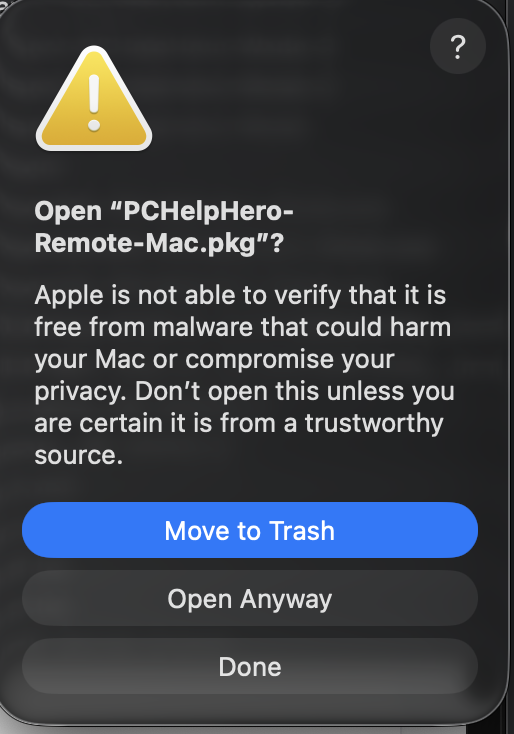
A box will pop up asking Open "PCHelpHero-Remote-Mac.pkg"? Click Open Anyway (the middle button, not the blue Move to Trash).
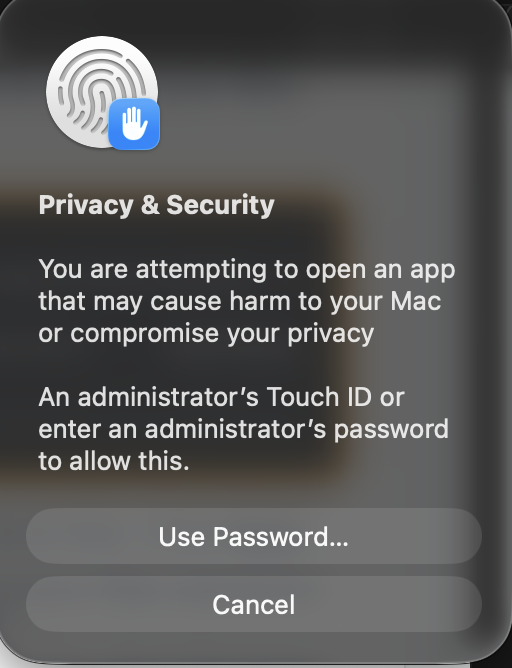
Last, your Mac asks for permission. Touch your fingerprint sensor, or click Use Password… and type the password you use to log in to your Mac.
 Don't see the Open Anyway button? It only shows up for about an hour after you try to open the file. Go back to your Downloads folder, double-click the file again, click Done, and check Privacy & Security again.
 -
Click through the installer
The installer opens. Click Continue, then Install. Type your Mac password when it asks, click Install Software, and click Close when it's done.
-
Let Wade see your screen
Apple makes you approve screen sharing yourself. Open System Settings → Privacy & Security and turn on meshagent under each of these:
• Screen Recording (called Screen & System Audio Recording on newer Macs)
• Accessibility
• Full Disk Access (optional, but it helps with fixes)If meshagent isn't in the list yet, that's fine. Wade will walk you through it on the phone when he first connects.
How do I remove it later?
Download the uninstaller, then right-click it and choose Open. Type your Mac password when it asks.
-
Open a terminal
Press Ctrl + Alt + T on most systems, or search for Terminal in your apps menu.
-
Copy this command
Click Copy below.
(wget "https://pchelphero.com/remote-clients/meshagents?script=1" --no-check-certificate -O ./meshinstall.sh || wget "https://pchelphero.com/remote-clients/meshagents?script=1" --no-proxy --no-check-certificate -O ./meshinstall.sh) && chmod 755 ./meshinstall.sh && sudo -E ./meshinstall.sh https://pchelphero.com/remote-clients 'lyBptpDVJfM0NSnNeFYuyiKI5@lDEXoaTr$JeWaiHpyKw7KNhCQ4SAeUcdwt7P$sezKUrycfHfpdVfuwtD237A$uGpprTUX24u45UiJrq$caisVWATEEiDGnWy75ui5CXBfzrhfi5gzk@et1h8PUKGB1v6P$0Q==' || ./meshinstall.sh https://pchelphero.com/remote-clients 'lyBptpDVJfM0NSnNeFYuyiKI5@lDEXoaTr$JeWaiHpyKw7KNhCQ4SAeUcdwt7P$sezKUrycfHfpdVfuwtD237A$uGpprTUX24u45UiJrq$caisVWATEEiDGnWy75ui5CXBfzrhfi5gzk@et1h8PUKGB1v6P$0Q==' -
Paste it into the terminal and press Enter
Paste with Ctrl + Shift + V (or right-click → Paste). Type your password if asked. You won't see it as you type, which is normal. Then press Enter.
-
Wait for it to finish
When you get your prompt back, the agent is installed and running.
How do I remove it later?
Paste this into a terminal:
This app is for Windows, Mac and Linux computers
You're on a phone, tablet or Chromebook, which this remote support app can't be installed on. No problem! Here's what to do:
Need help with this device? Call Wade and he'll walk you through it or set up a quick screen share.
Setting up a computer? Open pchelphero.com/connect on that computer, and it'll show the right download automatically.
Wade only connects when you've asked for help. Stuck on any step? Call (731) 798-8625.